Guide
Using Walkie One.
Scroll or tap to explore the buttons and light.
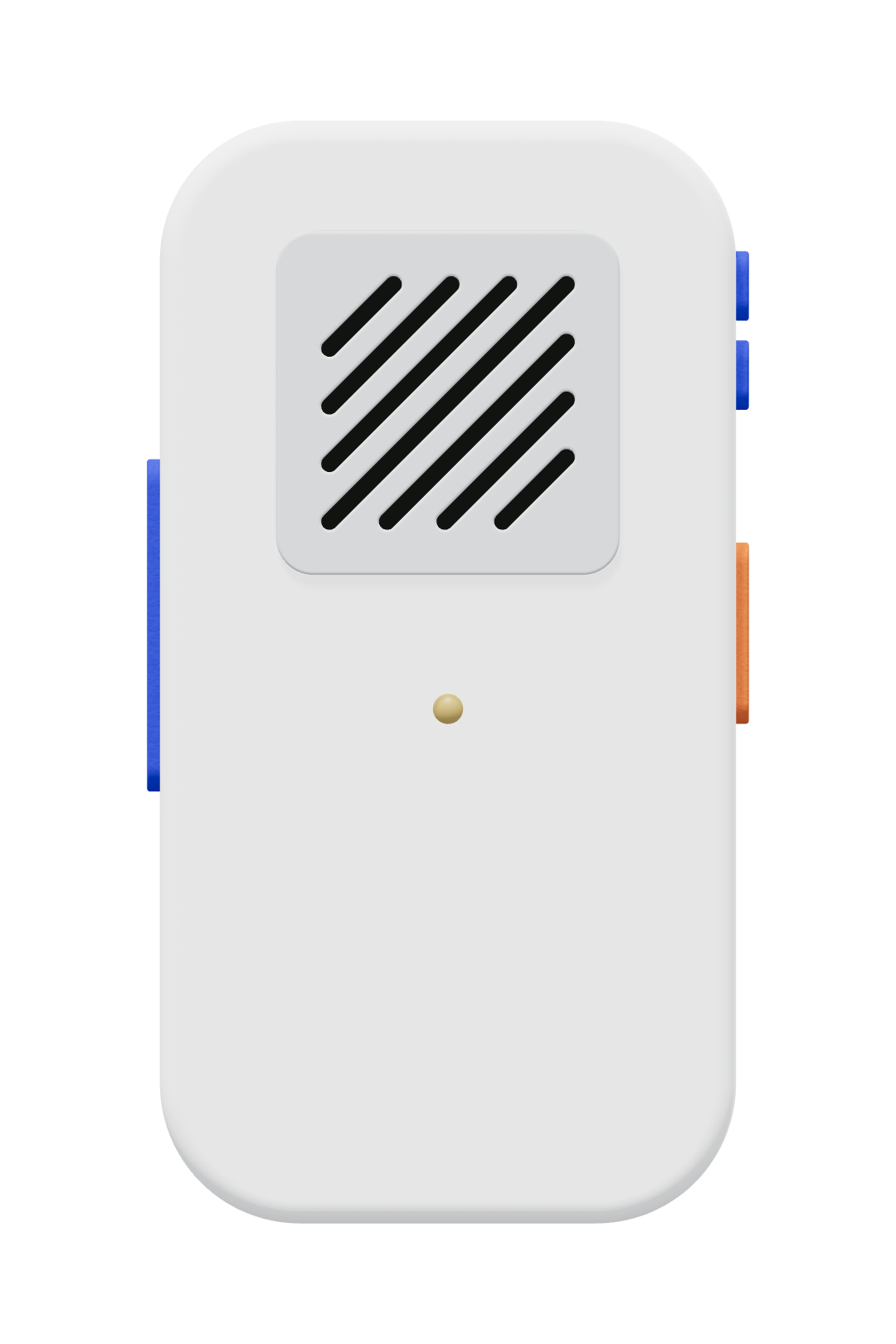
The buttons
What the light means
Battery
Other lights come first. The battery shows when nothing else is happening.
Connection & other lights
To choose or check your assistant, open Your devices.
Need a hand?
It won’t turn on
Plug a USB-C cable into the bottom edge to charge. The light stays orange while charging and stays green when full. Hold Play for 2 seconds to switch on. If the battery is empty, charge it first.
If it stops responding, hold Play for 5 seconds to switch off, then switch it back on. Holding Play never deletes a reply.
A dark light can also mean nothing is waiting, even when Walkie One is on.
I can’t hear a reply
When the light blinks green, press Play on the right to hear your reply. Press again to pause or resume. Use the upper volume button to turn it up. When the battery is low, volume is limited until you charge.
Blue blinking: your assistant is still working. Blue steady: Walkie One is speaking. No light means nothing is waiting, or the device is off.
It won’t connect
Make sure Walkie One is switched on. A fast red blink means no internet; the device keeps trying on its own.
A slow red blink means no assistant is connected. Open Your devices to finish setup or check your assistant.
For Muse, tap Talk 3 times. When the light blinks aqua, add Walkie One in the Muse app within 10 minutes. The light returns to normal once Muse is ready; there is no success flash. If the light stays red, wait 3 seconds and try again.